 ResumeFinch
Free download
Free resume templates for Google Docs and Word
Four simple, one-column resume templates you can download as Word files (.docx). Open one in Google Docs or Microsoft Word, replace the placeholder text with your own, and save.
- No sign-up or email
- No watermark
- Nothing to pay
- Opens in Google Docs and Word
Download a template
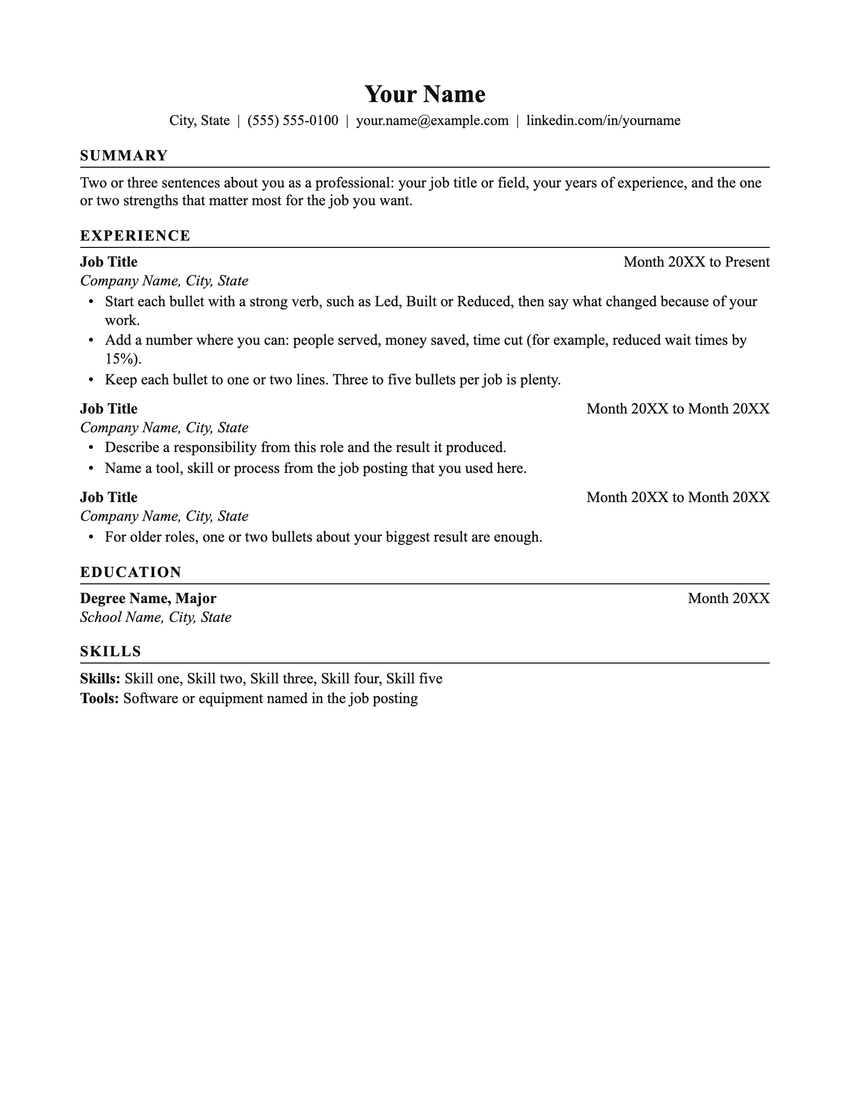
Classic resume template
A traditional layout in Times New Roman with a centered name and a thin rule under each heading.
Best for: Most jobs, and conservative fields such as finance, law and government
Word (.docx), 10 KB · Times New Roman · US Letter
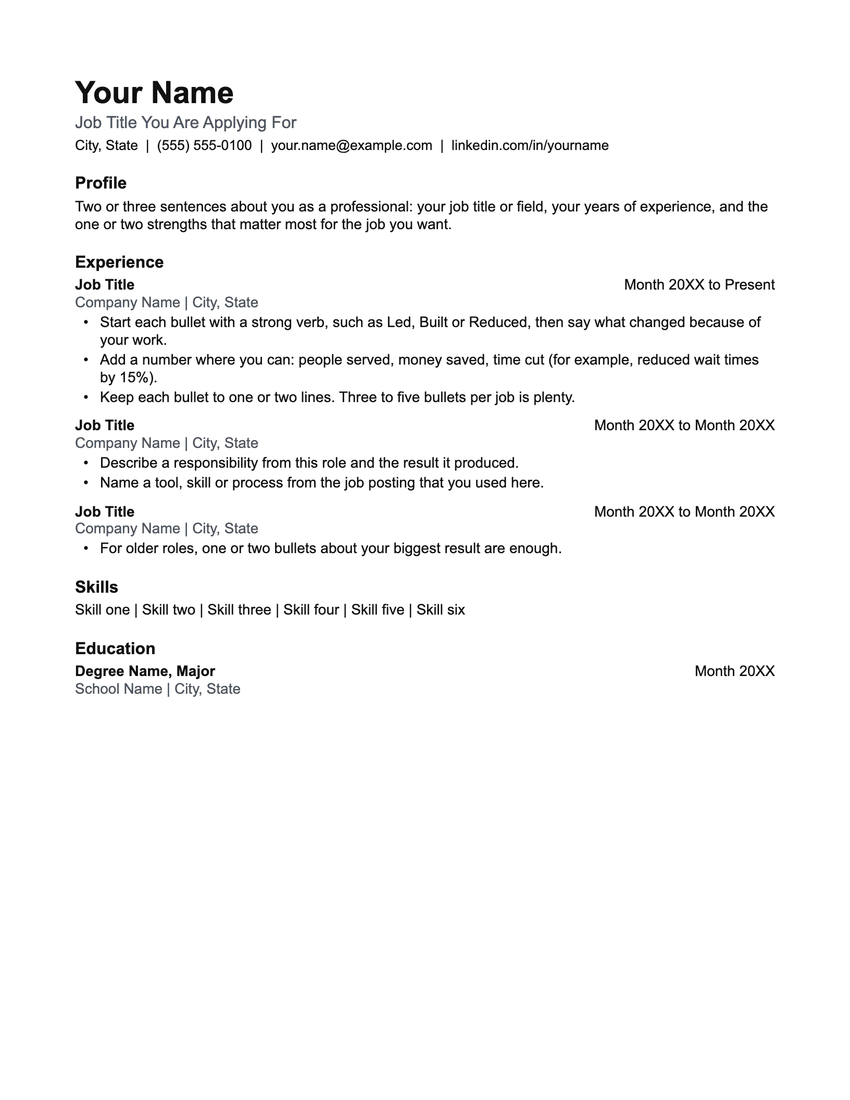
Modern resume template
Arial throughout, a large left-aligned name with a headline under it, and bold headings with no rules.
Best for: Office, tech, marketing, sales and customer-facing roles
Word (.docx), 10 KB · Arial · US Letter
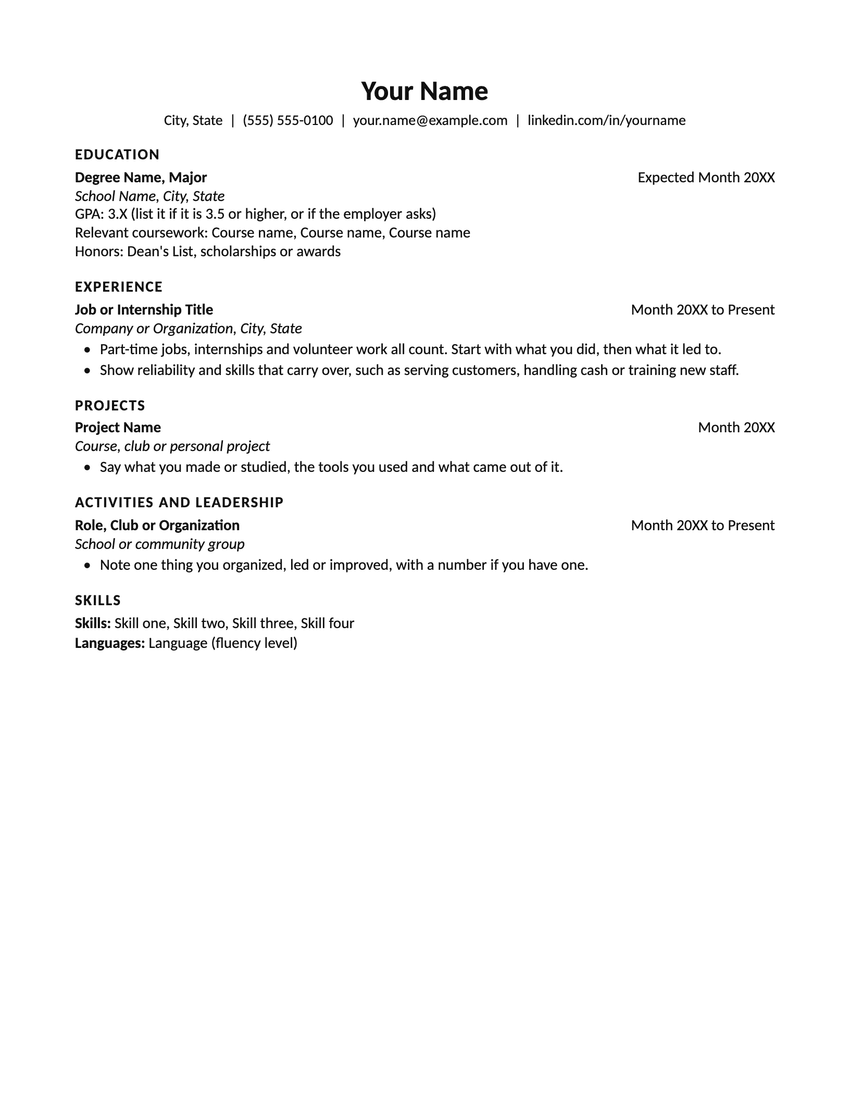
Student resume template
Education comes first, followed by experience, projects and activities, set in Calibri. For little or no work history.
Best for: Students, new graduates, internships and first jobs
Word (.docx), 10 KB · Calibri · US Letter
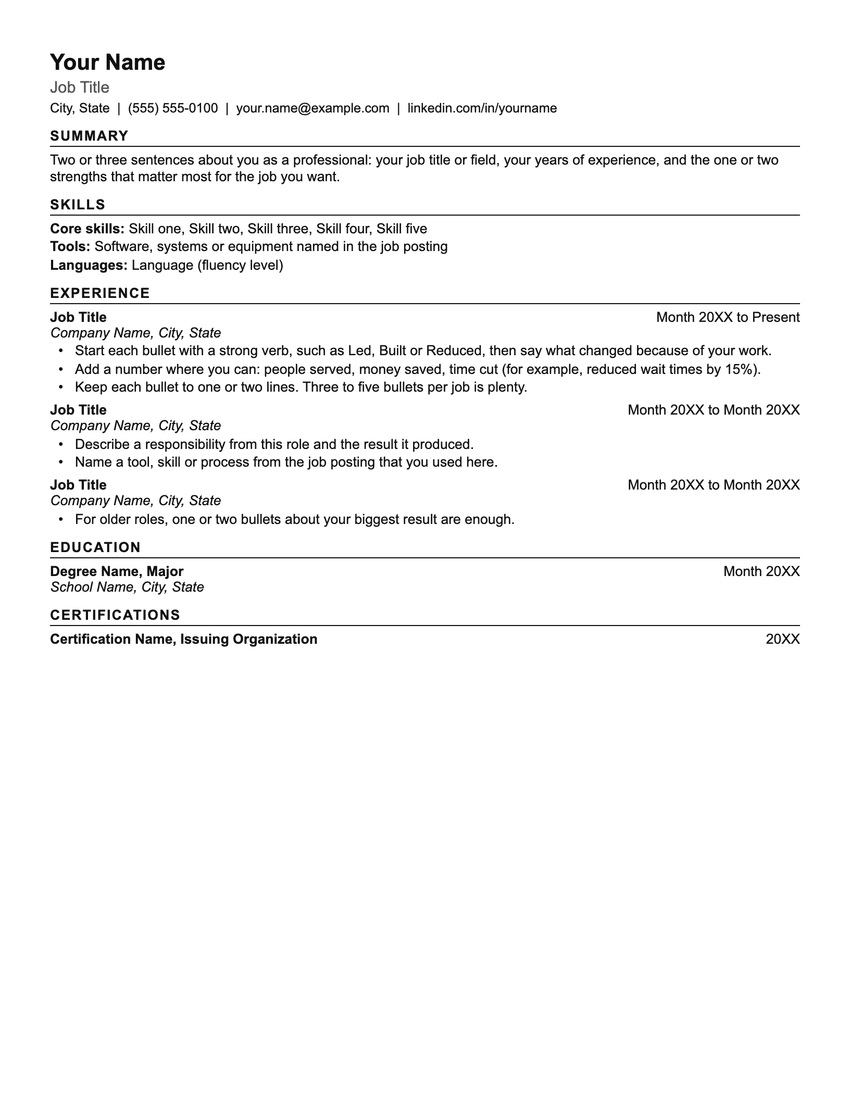
Compact resume template
Smaller type and half-inch margins fit three jobs, skills and certifications on one page.
Best for: Experienced candidates who need to keep a full career to one page
Word (.docx), 10 KB · Arial · US Letter
Every file is one page of placeholder text in black and grey. Google Docs is a trademark of Google LLC and Microsoft Word is a trademark of Microsoft Corporation; ResumeFinch is not affiliated with either.
How to open a template in Google Docs
- 1Click Download under the template you want. The .docx file saves to your Downloads folder.
- 2Go to docs.google.com and open any document, or start a blank one.
- 3Choose File > Open, select the Upload tab, and pick the .docx file.
- 4The file opens in Google Docs. To keep working in Google's own format, choose File > Save as Google Docs.
- 5Replace the placeholder text. When an application asks for a PDF, choose File > Download > PDF Document (.pdf).
How to open a template in Microsoft Word
- 1Click Download under the template you want.
- 2Double-click the .docx file, or open Word and choose File > Open. It works in Word for Windows and for Mac.
- 3If a yellow Protected View bar appears at the top, click Enable Editing. Word shows it for any file downloaded from the internet.
- 4Replace the placeholder text and save. To send a PDF, choose File > Save As (or Save a Copy) and pick PDF as the format.
Filling in the template
- Replace every placeholder, including "City, State" and the dates. Search for 20XX (Ctrl+F, or Cmd+F on a Mac) to catch any you missed.
- To add a job, select the whole block (title line, company line and bullets), copy it and paste it underneath. The styles, bullets and date position come with it.
- Dates sit at the right margin because of a tab stop. Keep the single Tab between the job title and the date rather than adding spaces.
- Delete any section you don't need, but keep standard headings such as Experience, Education and Skills so applicant tracking systems recognize them.
- Press Enter at the end of a bullet to start a new one. Keep it to one page unless you have more than about ten years of relevant experience.
- Save one copy per job you apply for, named with your name and the role, for example Your-Name-Resume.docx.
What makes these templates ATS-friendly
Applicant tracking systems pull your name, contact details, job titles and dates out of the file before a recruiter sees it. These files are built so that step has nothing to trip over:
- One column, read top to bottom. No tables, text boxes, columns or images.
- Your name and contact details are in the page body, not in the header area, which some parsers skip.
- Section titles use the Heading 1 style and your name uses the Title style, so they show up in the document outline in Google Docs and the navigation pane in Word.
- Bullets are real bulleted lists, not typed symbols, so they stay lined up as you edit.
- Only Times New Roman, Arial and Calibri, which come with Word and are in the Google Docs font menu.
- An automated test extracts each file's text the way a simple parser does and checks that it reads in order, from your name to the last section.
Want it formatted for you, with a live preview?
The ResumeFinch builder lays out your resume as you type, with 16 templates, 9 accent colors, 4 font pairings, autosave and example bullets for common jobs.
The builder is free to try: building and previewing cost nothing. Downloading from the builder is paid, a one-time $19 for one resume or $39 for every resume, with no subscription. The templates on this page stay free.
Already have a resume?
The free resume checker shows what an applicant tracking system can read from your PDF or Word file, with a strength score and the fixes that would raise it.
No sign-up, and your file is read in your browser. It is never uploaded or stored.
Frequently asked questions
Are these resume templates really free?
Yes. Download any of them without an account or an email address. There is no watermark, no trial and nothing to pay, and the file is yours to edit and keep.
Can I use these templates in Google Docs?
Yes. Each one is a .docx file, which Google Docs opens directly: in Docs, choose File > Open, then the Upload tab. The fonts used (Times New Roman, Arial and Calibri) are all in the Google Docs font menu, so nothing is swapped for a different font.
Do they work with Microsoft Word?
Yes, in Word for Windows and Mac, and in Word on the web if you upload the file to OneDrive first. The files use Word's built-in styles: Title for your name, Heading 1 for section titles and a standard bulleted list.
Are these templates ATS-friendly?
They are built the way applicant tracking systems read most reliably: one column, standard section headings, contact details as plain text and no tables, text boxes or images. No template can promise how a particular employer's system will rank you, so keep the headings standard and run the finished file through the free resume checker.
Which template should I choose?
Classic for traditional fields such as finance, law and government. Modern for most office, tech and customer-facing jobs. Student if your education is your strongest section. Compact if you need three or more jobs on one page.
How are these different from the templates in the ResumeFinch builder?
These four are plain files you edit by hand in Google Docs or Word. The builder has 16 different designs with color, font and spacing options, lays out every page for you as you type and exports both PDF and Word. Building and previewing in the builder is free; downloading from it is a one-time payment.
Can I share these templates with students or clients?
Yes. Career centers, teachers and coaches are welcome to link to this page or hand out the files. Linking to the page means people get the current version along with the instructions for Google Docs and Word.
Can I change the paper size to A4?
Yes. The files are set to US Letter (8.5 by 11 inches). In Google Docs choose File > Page setup, then Paper size. In Word choose Layout > Size. Check the page breaks afterwards, since A4 is slightly narrower and longer.
Related pages
- Google Docs resume template
- Word resume template
- Student resume template
- ATS resume template
- All resume templates
- Resume guides
Looking for a filled-in sample instead of a blank layout? See the resume examples by job.